
To calibrate or re-calibrate your Dr. Dish please reference your model in the below article and follow those instructions! You can verify your model here!
Even the best machines need a little tune-up every now and then. If you notice your machine isn't rotating as it should, don't panic! Try calibrating it first before reaching out to our service department. We've got easy-to-follow instructions for each of our machines listed below.
Dr. Dish Arc1, Home, FCLTY, CT+, All-Star+, and Rebel+
Written Instructions
-
Access Calibration Settings
-
Power on your machine and navigate to the Main Screen of the Dr. Dish application on your machine's integrated tablet or your mobile device, if using the Home model.
-
Tap More (the three dots on the left-hand side).
-
Select Support, then tap Troubleshooting.
-
Tap Calibration at the top of the screen, then select Calibrate.
-
-
Align the Center
-
Physically rotate the machine until it is facing the Center of the court.
-
Check the number on the screen; it should turn green when the value is between 400 and 600.
-
Once aligned and the number is green, tap Confirm.
-
-
Align the Right Baseline
-
Use the front handle to rotate the machine toward the Right Baseline.
-
Ensure the value on the screen is within the specified green range, between 721 and 871.
-
Tap Confirm.
-
-
Align the Left Baseline
-
Rotate the machine toward the Left Baseline.
-
Ensure the value on the screen is within the specified green range, between 171 and 321.
-
Tap Confirm.
- The process is now complete.
-
Dr. Dish CT
Dr. Dish 2.0 Pro, All-Star, and Rebel
Written Instructions 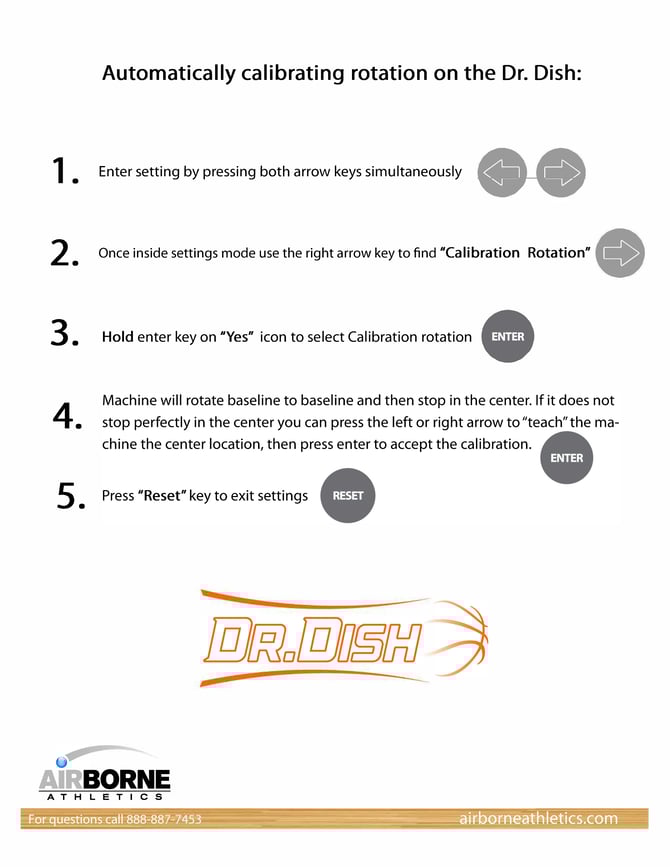
If you still have trouble after calibrating, we’d love to help! Please start support ticket here or you can call the Support+ Team at 612-412-4410!