*Note: Leaderboard Casting is not to be confused with Scoreboard or Machine to Screen Pairing.
-
Leaderboard Casting is for the dedicated TV showing the player stats for all players who ball at your facility.
-
Scoreboard, or Machine to screen pairing, is for the dedicated TV that is paired to a physical machine by serial number. When a machine is being used it shows the Drill data but when that machine is not being used it shows the Leaderboard.
To Set up your Facility Leaderboard Casting
-
First you'll need to make sure your TV has a compatible web browser. You can verify that here!
- Make sure your TV is connected to your network
- Leaderboard Casting works by adding a specific URL link into the TV's web browser. If the TV does not have a network connection the URL link will not load or display.
- Dr. Dish will send you an email with your Leaderboard link prior to you receiving your machine(s). Enter that link into the TV's browser using the remote for your TV. You could also connect a wireless keyboard and UBS dongle to the TV's USB input - much easier than a remote.
- You can also retrieve your Leaderboard link for your Facility from within TMS.
- Log into TMS
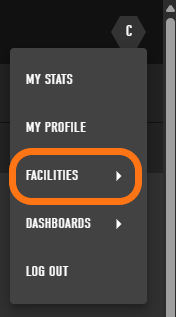
- Once logged in click on the Profile icon on the top right and select Facilities and then click on your Facility.
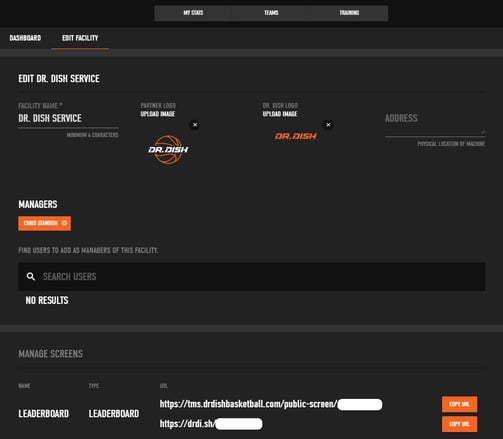
- Once in the Edit Facility screen, you can see the Manage Screens section.
- This is is where you can see the Leaderboard link.
- Use the shorter of the two links, both work, but the shorter one is easier to enter.
- Important: The link is case sensitive, make sure it matches exactly what's shown.
- You can also retrieve your Leaderboard link for your Facility from within TMS.
- Once the link is entered into the TV's browser the Facility Leaderboard will be shown!
- Here's a quick snapshot of what it looks like and how Leaderboard stats are tacked!