
What is a Team in Dr. Dish TMS
A team is a group of players managed by a coach inside the Training Management System (TMS).
How to access TMS
-
First, go to the TMS website located here (Sign up if needed)
- Enter your login credentials to access the dashboard
- You are now logged into your TMS profile
How to Create a Team
- Click Teams in the top navigation highlighted below.
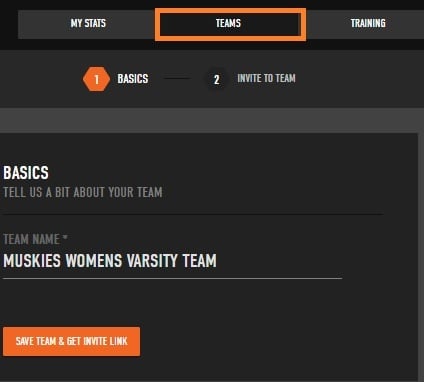
- Click Add Team button in the upper-right corner.
- Enter the required team details.
- Click Save Team.
Adding and Inviting Players to Your Team
- Each team uses a unique invite link that players can use to join your team.
- After creating a team, you will immediately be able to copy the link.
- If you have previously created a team and want to invite players, then click Teams in the navigation highlighted below. You will see an Invite players button for any team you have created. This will bring you to the invite link for that team.

- If you did not create the team, follow these steps to access the invite link
- Select the team.
- Click Manage Team in the upper right corner.
- Copy the invite link.
- This link can be texted or emailed to players. Then players must log into their Dr. Dish account to accept the invite and be added to the team.
How to Remove a Player
- Only the person who created the team can remove players.
- Open the team and click Roster.
- Find the player you want to remove and click View.
- Click the settings icon in the upper-right corner.
- Scroll down on the players profile page and you will see all teams the player is associated with.
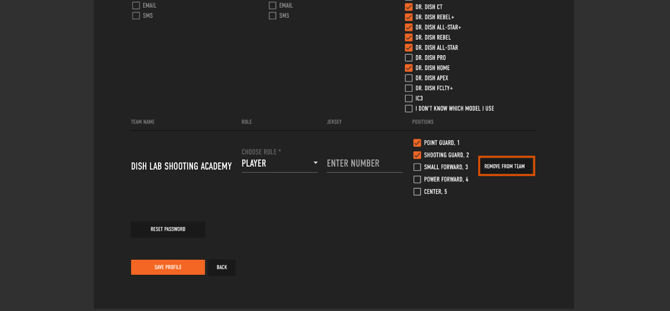
- Click remove from team on any team you would like to remove the player from.
- If the option is not available, you are not the creator of the team.
Below is an example player profile with the “Remove From Team” button highlighted in orange on the right.
Team Size & Player limits
- There is not a limit to the amount of players that can be added to a team or number of players on a team.
- A single player can be added to multiple teams. This allows coaches to keep stats and create competition in a program. Some examples of teams a coach may create include:
- Each Team
- Grade Level
- Position