Training on Dr. Dish comes in three levels: Drills, Workouts, and Programs. Each level builds
on the last to help players train smarter, whether they’re getting up quick reps or following a full
offseason plan. This guide will walk you through creating a workout, adding drills to a workout, and assigning workouts to players on your TMS Team!
*Dr. Dish created Programs are available but users are not able to create Programs at this time.
Logging In:
- Go to the TMS website here and log in.
- Click on "Training" at the top of the page, shown in the picture below.

- Click "Build a Workout" in the upper right corner.
Creating a drill
A drill is a short term training session focused on specific location, skill, or challenge.
- Tap Start Shooing.
- Select Build a Drill
- Choose your drill mode
- Tap the the court to add shooting locations
- Set rep counts, tempo, and looping behavior
- Run or save the drill
Creating a workout:
A workout is a collection of drills arranged into a full practice session. A workout will automatically move from 1 drill to the next without stopping.
-
Don't forget to fill in the important parts of a workout that will help your players complete the workout successfully.
- Name the workout.
- Workout level: This gives a player an idea of how difficult the workout will be.
- Workout Description: What skills will be worked on and what does the workout include?
- Dr. Dish Location: Select the location the machine should be located for the workout.
- Optional: the "Add Advanced Options" button has the ability to additional settings to your workout.
- Workout duration.
- "Leaderboard "Type" to select which shooting statistic you would like to keep track of on your leaderboard.
- This custom leaderboard is only available for workouts created by you.
- Skills included (2pt, 3pt, FT, ball handling, conditioning).
- Player positions
- Optional: the "Add Advanced Options" button has the ability to additional settings to your workout.
- Once all mandatory fields are filled in, click "Save Workout".
Adding Drills to The Workout
- Click on "Training" at the top of the page, shown in the picture below, and then select the "My Training" tab.
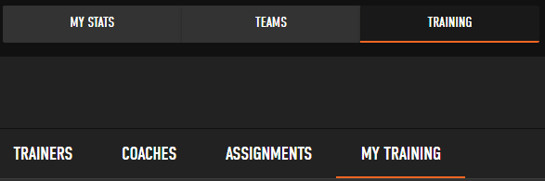
- Click on the workout you would like to add a drill to.
- Click the "Add Drill" button as seen in the picture below.
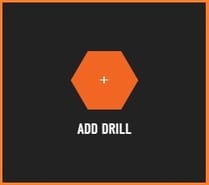
- Add a drill name, description of the drill the player will be doing, and drill type, then click Continue.
- Select the goal for the player in the drill, and hit Continue.
- Click on the locations on the court to select where the player will shoot from in the order you would like them to shoot from.
- The "Undo button will unselect the last spot selected.
- Select the "Passing Loop" to either start at the beginning or in reverse if the workout needs to repeat.
- Complete the "Attributes" field. Then click either "Save drill & Add Another" if you would like to add more drills to the workout or click "Save drill".
Assigning a Workout
- Click on "Training" at the top of the page, shown in the picture below, and then select the "My Training" tab.
- Click on the workout you would like to assign.
- Click the Assign Workout button in the upper right.
- Click the checkbox to the left of any player you want to assign the workout to and click "Add/Edit Assignments".
- To assign a workout to a player you and that player must be on at least one team together.
- If you are not on a team together that player will not be visitble in the Assign Workout screen
- Select a start and end date for this workout.
- Leaving the start and end date blank will allow the player to complete the workout anytime.
Finding your Assigned Workouts
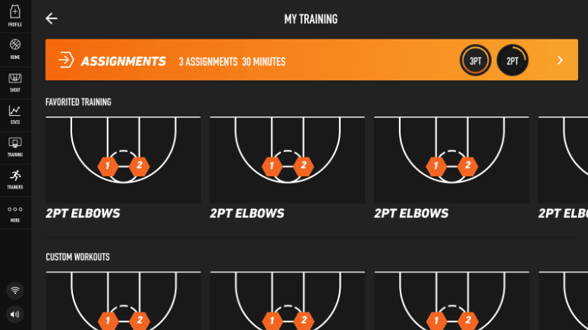
After logging into your profile you tap "Start Shooting", "My Training", then the "Assignments" banner shown at the top of the page below.